
Features
Basic Usage
You can use this add-in to run SQL statements for data analysis in Excel.
For example, you have two data tables, which are:
Sheet1:
| CustomerID | Name |
|---|---|
| 1 | Alice |
| 2 | Bob |
| 3 | Charlie |
Sheet2:
| OrderID | CustomerID | Product |
|---|---|---|
| 101 | 1 | Laptop |
| 102 | 2 | Phone |
| 103 | 3 | Printer |
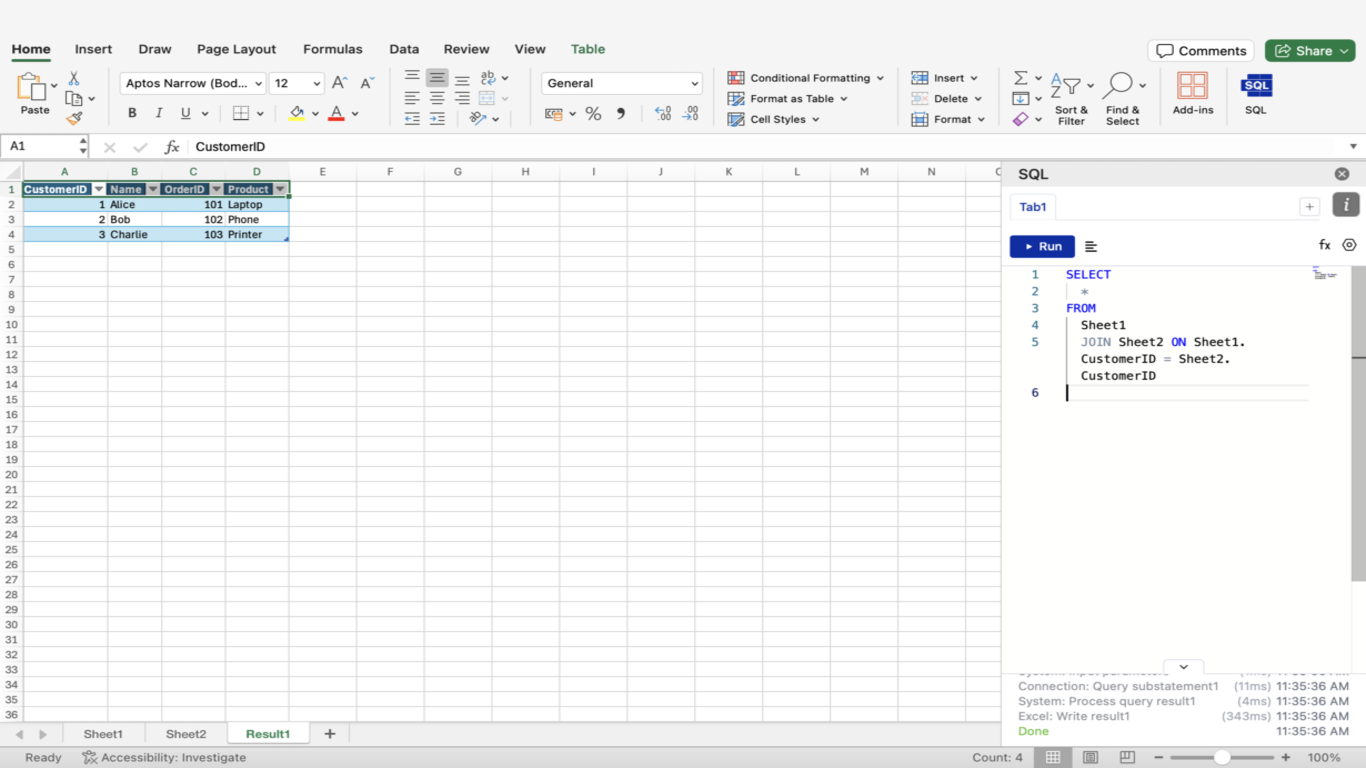
You can enter the following SQL statement in the add-in and run it:
SELECT
  *
FROM
  Sheet1
  JOIN Sheet2 ON Sheet1.CustomerID = Sheet2.CustomerID
The results will be output in the form of a data table.
Data Collection
Table Name
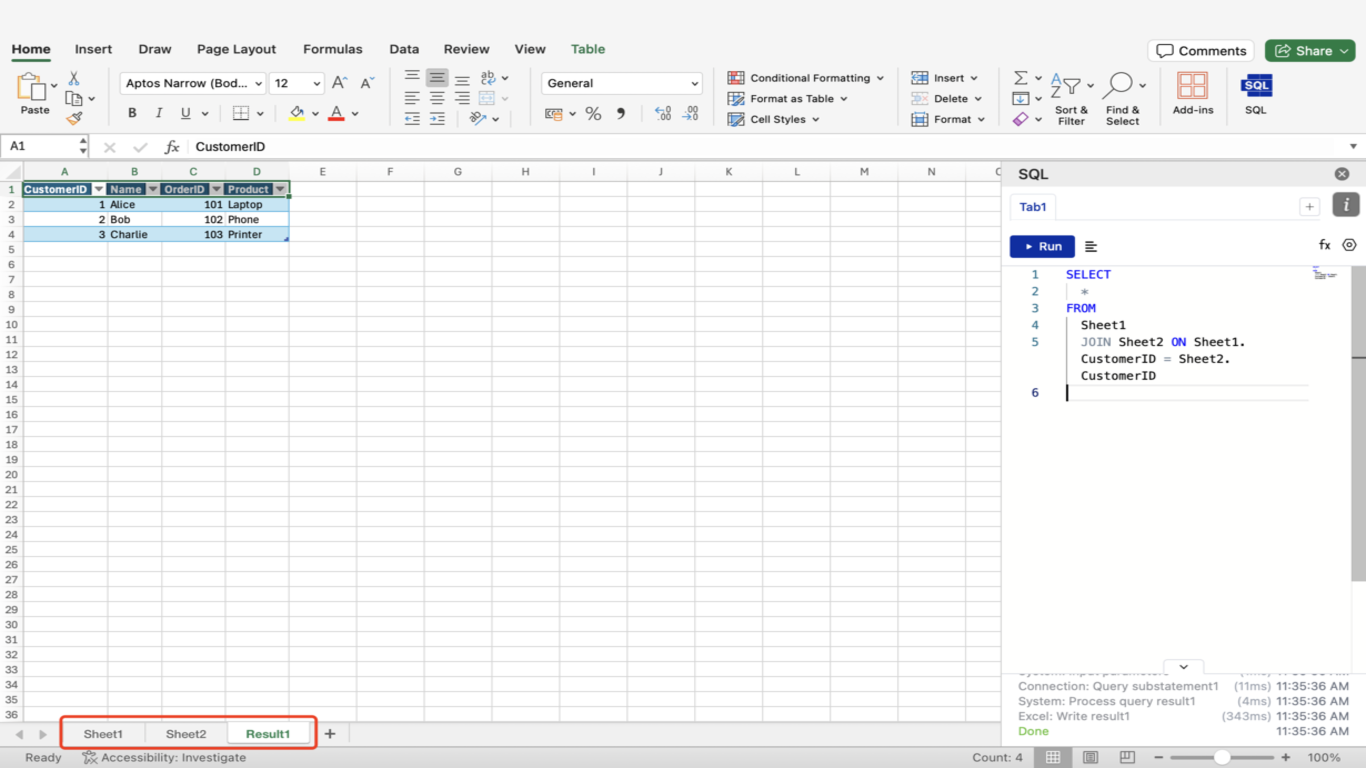
"SQL Analysis" uses the worksheet name as the data source table name by default.
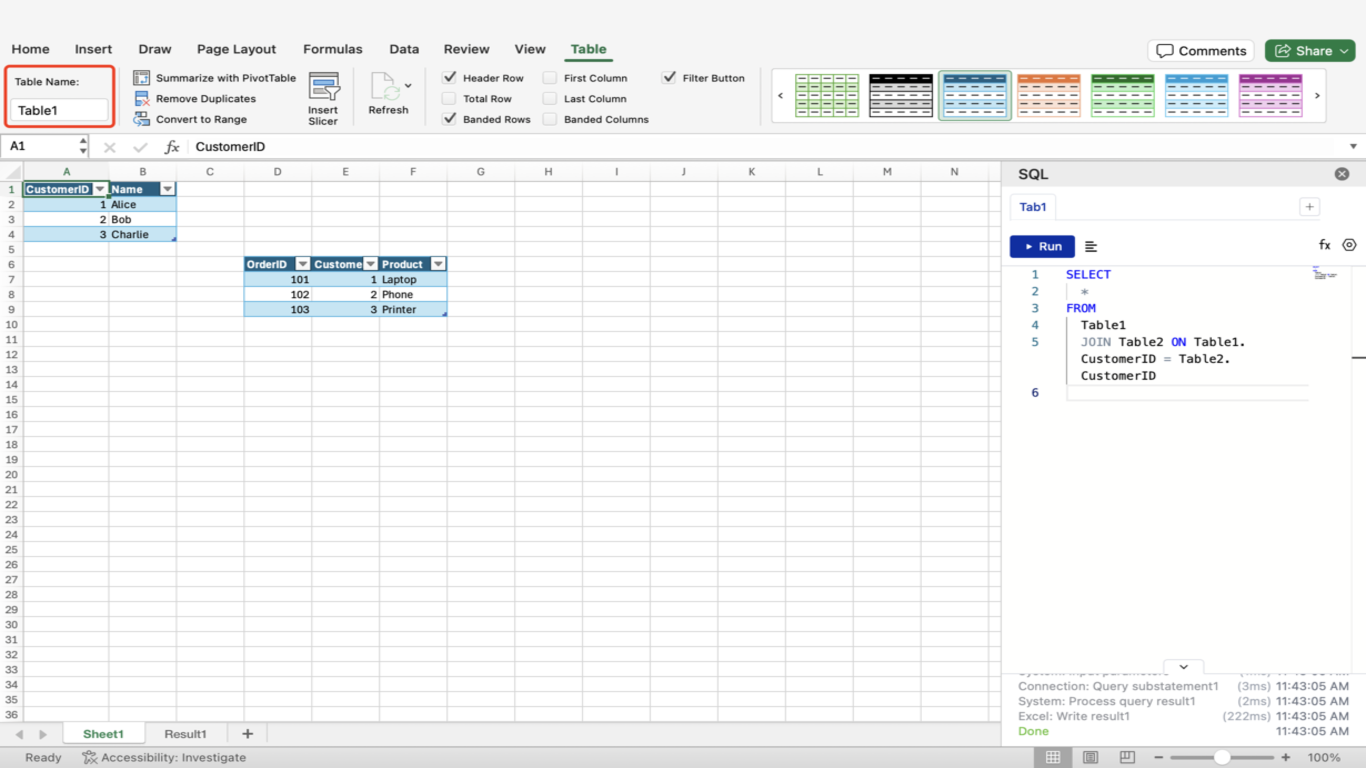
💡 When a worksheet contains multiple tables, use the table name as the data source table name (The table name can be viewed in the table menu item)
Data Range
This add-in only collects worksheets / tables in the current workbook as data sources.
Excel Terminology Explanation
Workbook: Each .xlsx file can be considered as a workbook. When you open an Excel file, you are opening an Excel workbook.
Worksheet: The "Sheet" tabs you see at the bottom of the window after opening an Excel workbook represent worksheets. The number of tabs indicates the number of worksheets.
Table: Each worksheet can contain multiple tables, which can be created by selecting a region and then "Insert".
Tools
Multiple Workspaces
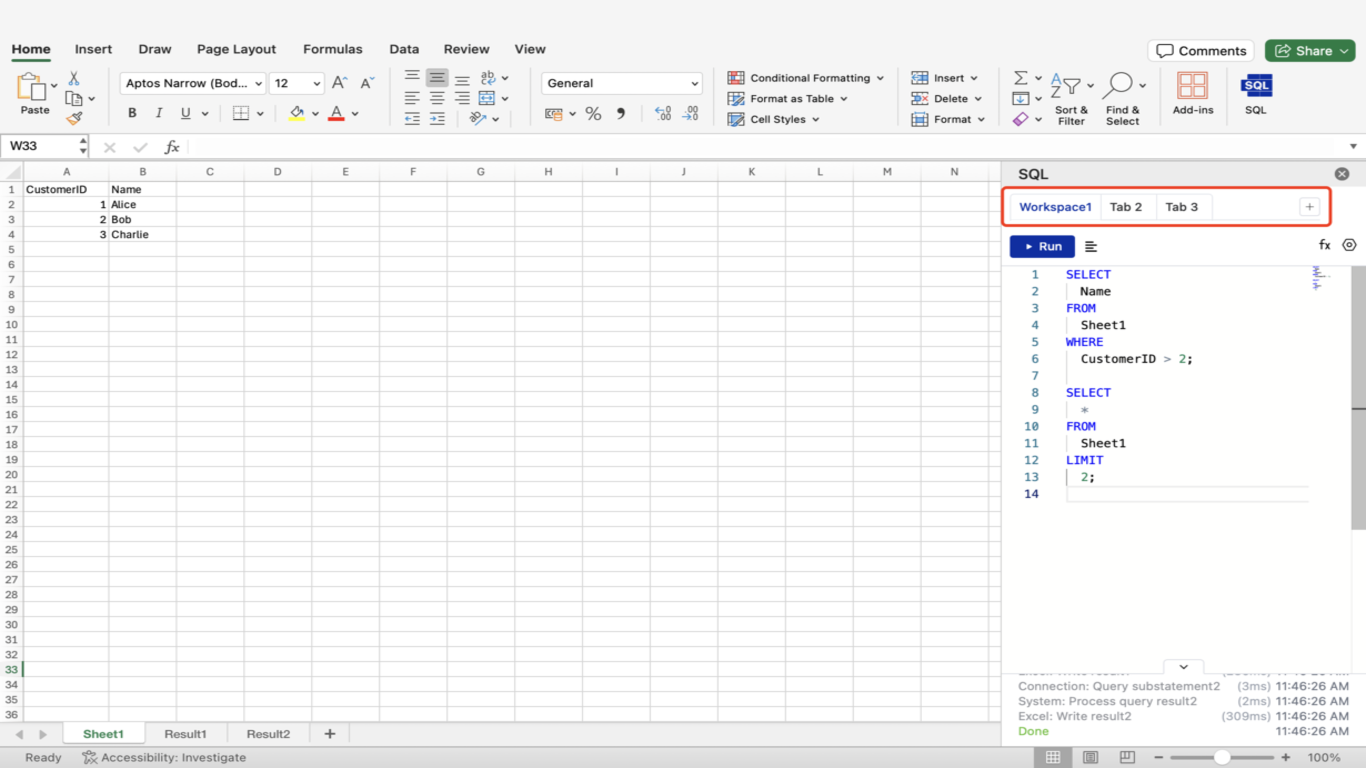
You can create multiple workspaces by clicking the "Add Tab" button.
Double-click the workspace title to rename it.
Functions
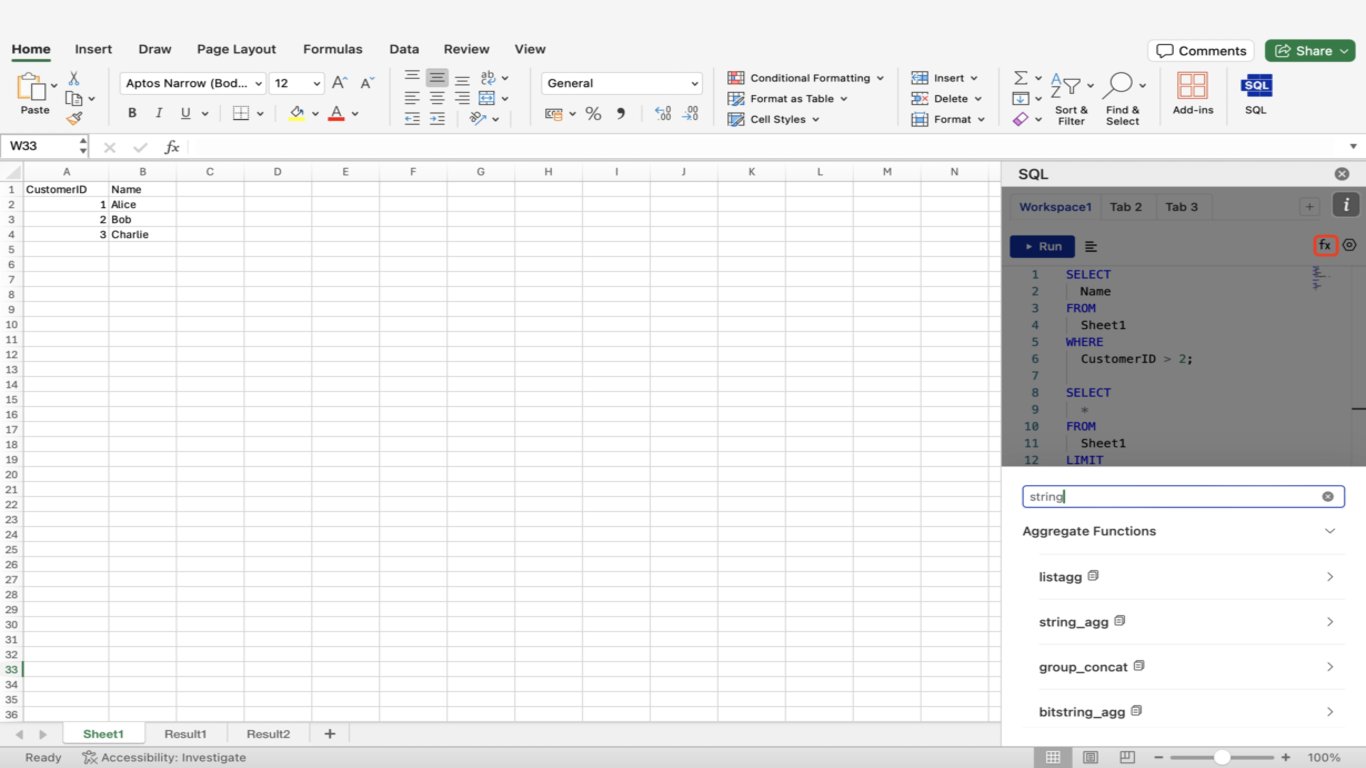
Click the function icon to view the supported functions (aggregate functions and scalar functions).
Auto Save / Keyword Prompt
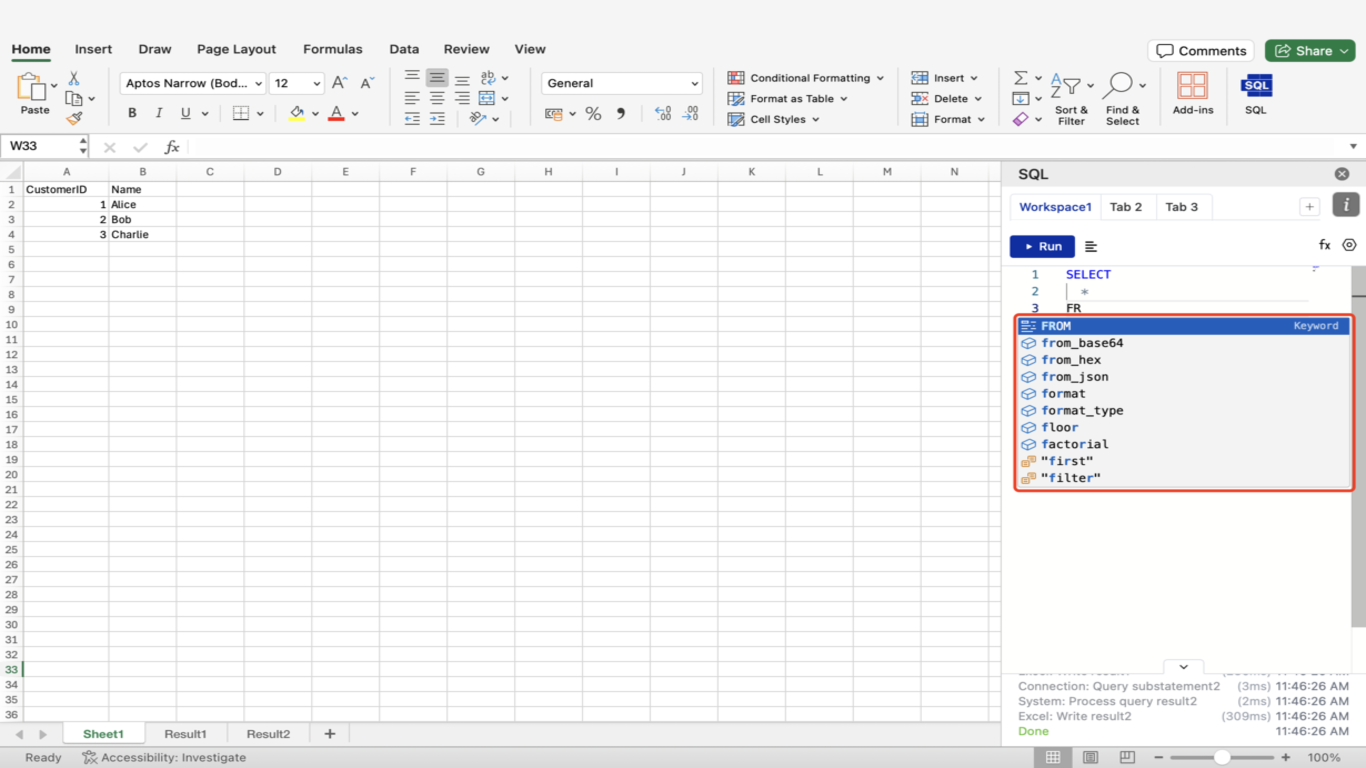
Each edited SQL statement is automatically saved in your local storage.
Keyword prompts will be provided as you type.
Execution
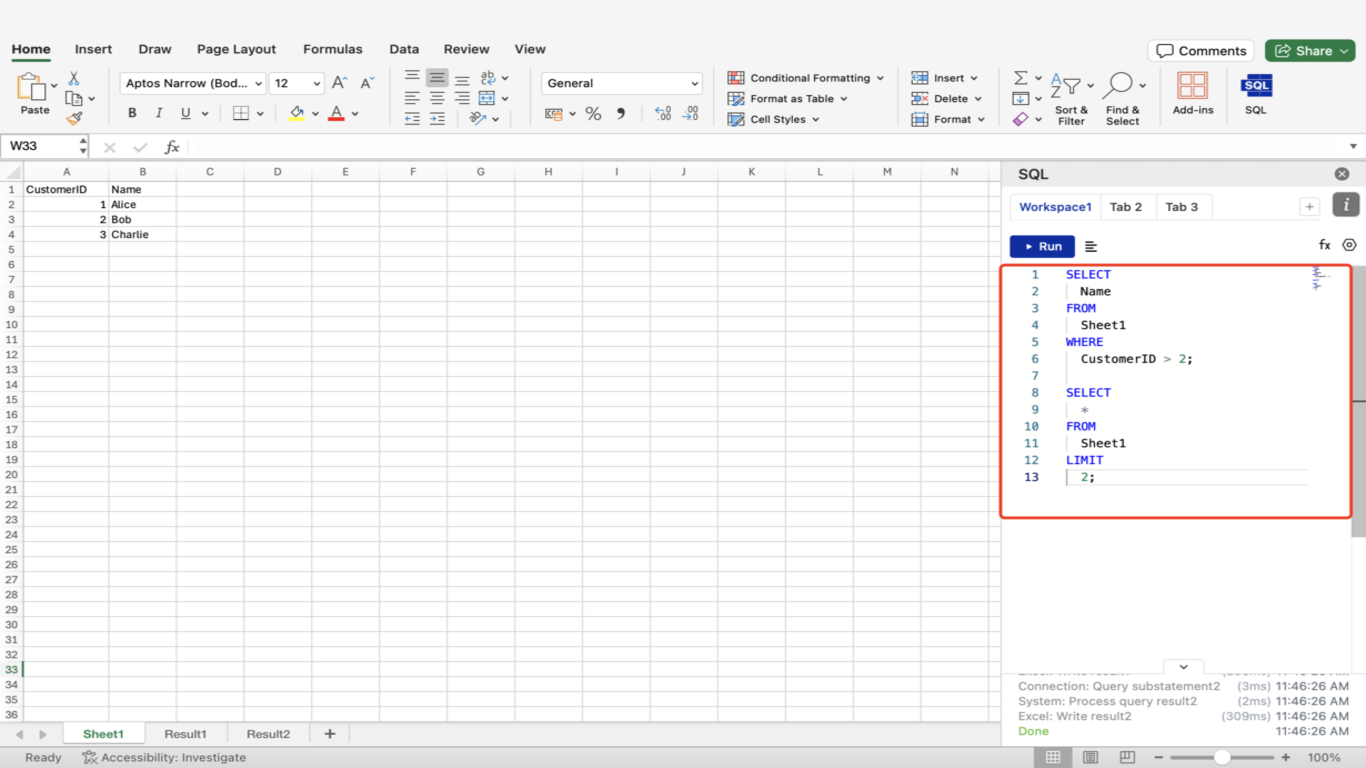
Multi-statement Execution
You can enter multiple SQL statements in the editor, and multiple results will be generated after running.
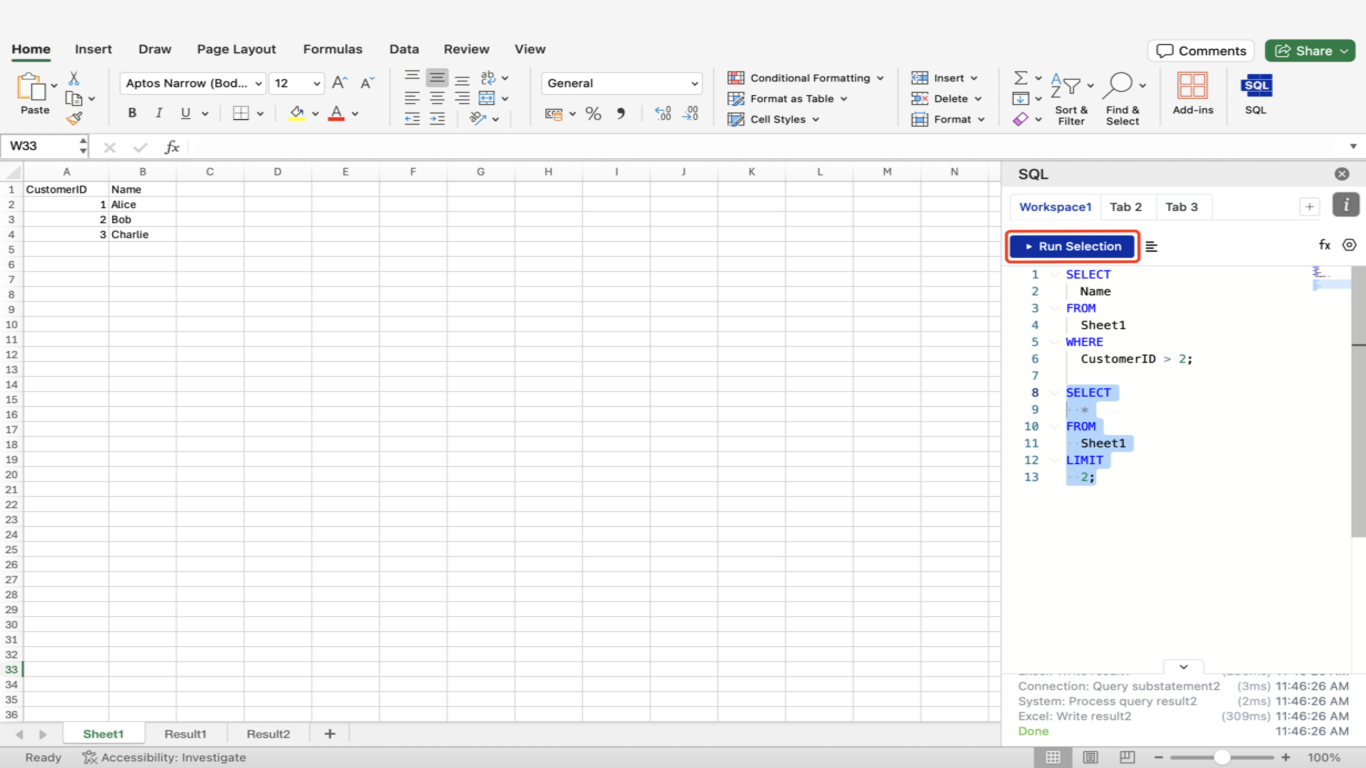
Partial Execution
You can perform partial execution by selecting part of the SQL statement.
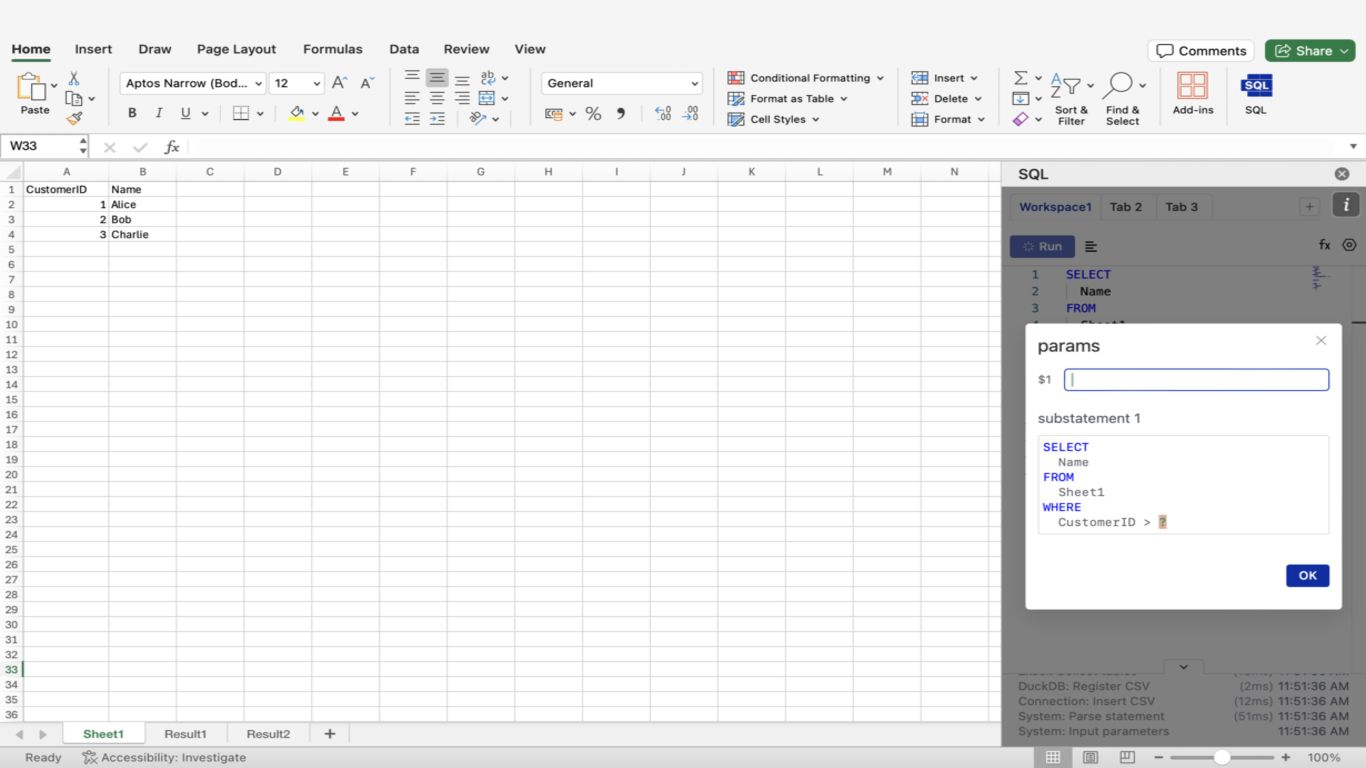
Parameterized Query
You can perform parameterized queries using the ? placeholder.
Results
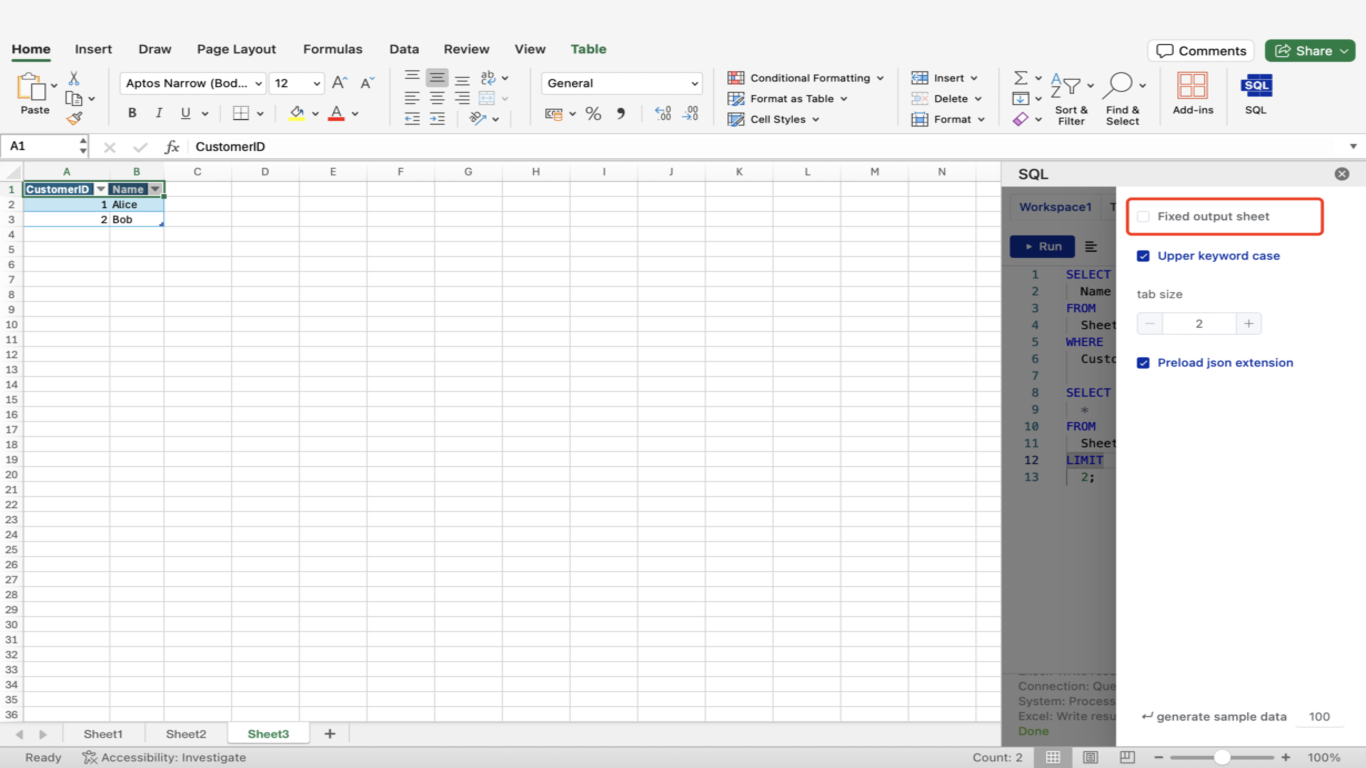
Fixed Output
The results will be output in the form of a worksheet. By default, a worksheet with a fixed name is generated. If you need to save historical query results, you can uncheck the "Fixed output sheet" option, and a new data table will be generated for each query result.
Offline Use
This add-in supports offline access. Once you have fully loaded the application once, you can use all the features of the application even in a no-network environment.
Others
No-installation Version
If your computer does not have Excel installed or cannot use Excel add-ins, we also provide a web no-installation version. You can actively upload files for data analysis.
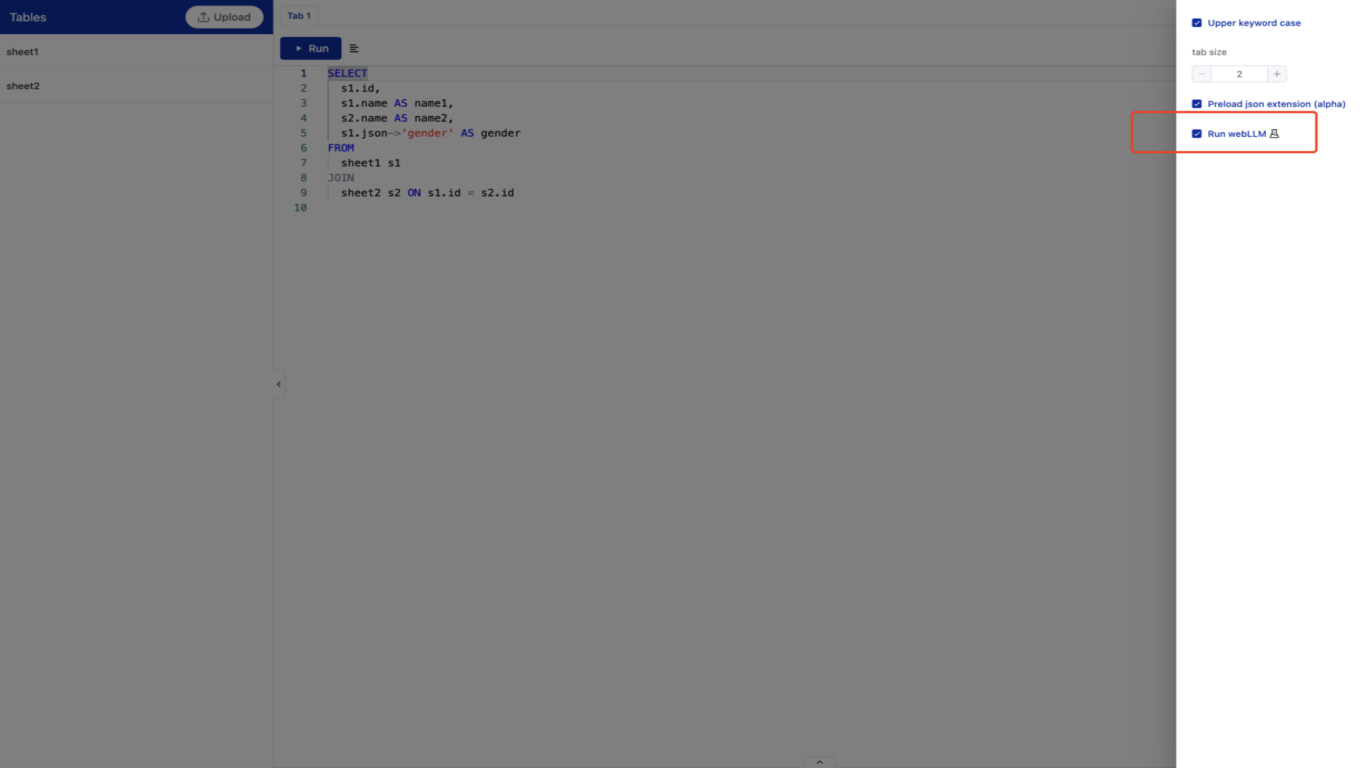
text2SQL
If your computer supports webGPU, click the settings button, and you will see the run WebGPU option. Check it to try out the text2SQL capability (the first use requires downloading model data, which may take tens of minutes, but subsequent use will be faster).
⚠️ This feature is still in testing and may be resource-intensive, so please use it with caution.
Contact Us
If you have any questions about our privacy policy, please feel free to contact us.
Email: shaodeqi@lovefe.com